Expo Navigation Patterns: Building Intuitive Mobile Experiences
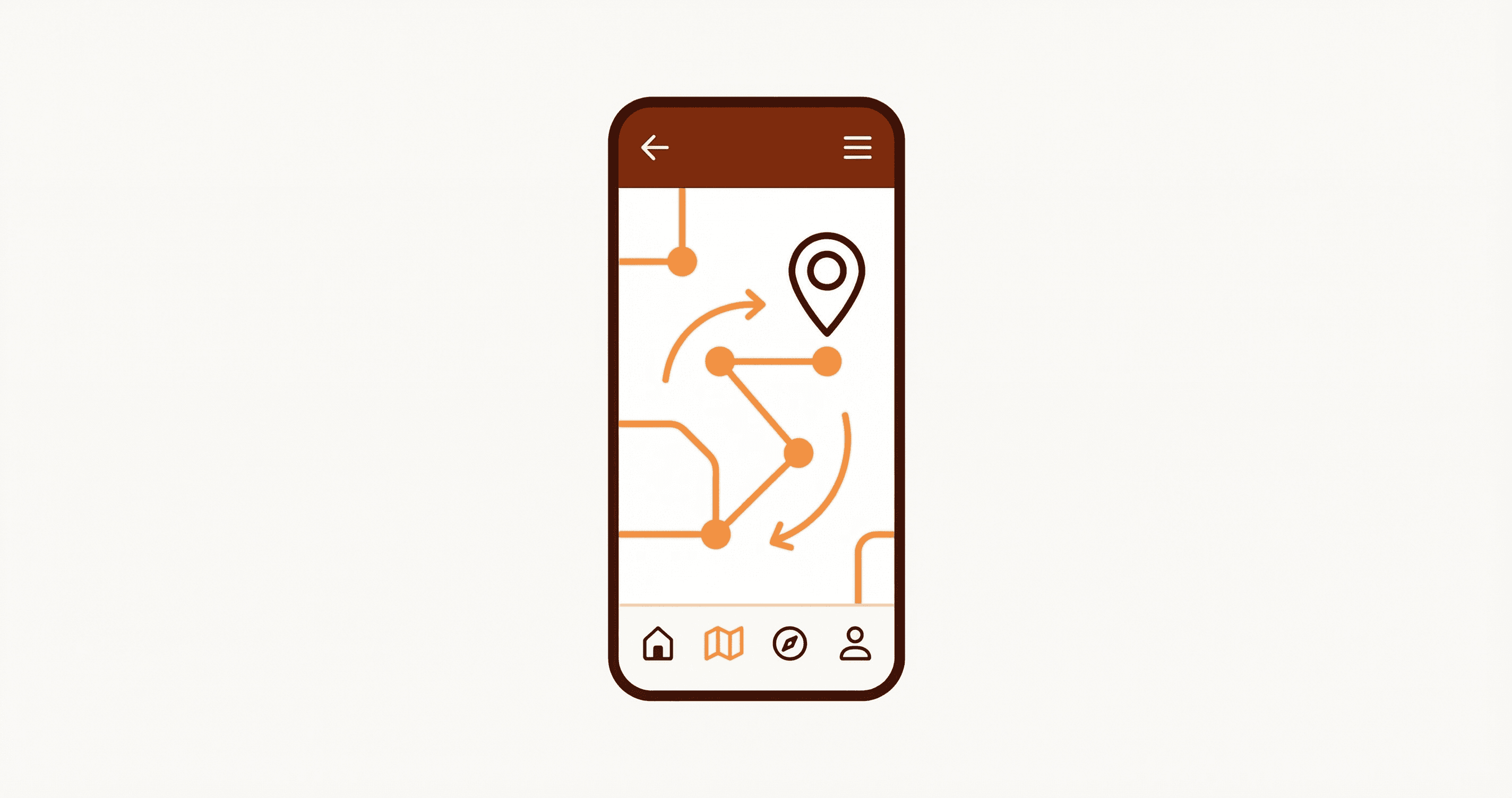
Navigation is fundamental to mobile app user experience. Expo provides excellent support for React Navigation, the most popular navigation library for React Native. In this article, we'll explore navigation patterns, including stack navigation, tab navigation, drawer navigation, and deep linking, to build intuitive mobile experiences.
Setting Up React Navigation
1. Installation
npx expo install @react-navigation/native
npx expo install react-native-screens react-native-safe-area-context
npx expo install @react-navigation/native-stack
npx expo install @react-navigation/bottom-tabs
npx expo install @react-navigation/drawer
2. Basic Navigation Setup
// App.tsx
import React from 'react';
import { NavigationContainer } from '@react-navigation/native';
import { createNativeStackNavigator } from '@react-navigation/native-stack';
import { HomeScreen } from './screens/HomeScreen';
import { DetailsScreen } from './screens/DetailsScreen';

const Stack = createNativeStackNavigator();

export default function App() {
  return (
    <NavigationContainer>
      <Stack.Navigator initialRouteName="Home">
        <Stack.Screen
          name="Home"
          component={HomeScreen}
          options={{ title: 'Home' }}
        />
        <Stack.Screen
          name="Details"
          component={DetailsScreen}
          options={{ title: 'Details' }}
        />
      </Stack.Navigator>
    </NavigationContainer>
  );
}
Stack Navigation
Stack navigation provides a card-based interface where screens are pushed and popped.
1. Basic Stack Navigation
// screens/HomeScreen.tsx
import React from 'react';
import { View, Button, Text } from 'react-native';
import { useNavigation } from '@react-navigation/native';
import type { NativeStackNavigationProp } from '@react-navigation/native-stack';

type RootStackParamList = {
  Home: undefined;
  Details: { itemId: number; title: string };
  Profile: { userId: string };
};

type HomeScreenNavigationProp = NativeStackNavigationProp<RootStackParamList, 'Home'>;

export function HomeScreen() {
  const navigation = useNavigation<HomeScreenNavigationProp>();

  return (
    <View>
      <Text>Home Screen</Text>
      <Button
        title="Go to Details"
        onPress={() => {
          navigation.navigate('Details', {
            itemId: 86,
            title: 'Item Details',
          });
        }}
      />
      <Button
        title="Go to Profile"
        onPress={() => {
          navigation.navigate('Profile', {
            userId: '123',
          });
        }}
      />
    </View>
  );
}
2. Receiving Parameters
// screens/DetailsScreen.tsx
import React from 'react';
import { View, Text } from 'react-native';
import { useRoute, RouteProp } from '@react-navigation/native';
import type { NativeStackNavigationProp } from '@react-navigation/native-stack';

type RootStackParamList = {
  Details: { itemId: number; title: string };
};

type DetailsScreenRouteProp = RouteProp<RootStackParamList, 'Details'>;

export function DetailsScreen() {
  const route = useRoute<DetailsScreenRouteProp>();
  const { itemId, title } = route.params;

  return (
    <View>
      <Text>Details Screen</Text>
      <Text>Item ID: {itemId}</Text>
      <Text>Title: {title}</Text>
    </View>
  );
}
3. Custom Header Configuration
// App.tsx
import { createNativeStackNavigator } from '@react-navigation/native-stack';

const Stack = createNativeStackNavigator();

export default function App() {
  return (
    <NavigationContainer>
      <Stack.Navigator
        screenOptions={{
          headerStyle: {
            backgroundColor: '#6200ee',
          },
          headerTintColor: '#fff',
          headerTitleStyle: {
            fontWeight: 'bold',
          },
        }}
      >
        <Stack.Screen
          name="Home"
          component={HomeScreen}
          options={{
            title: 'My Home',
            headerRight: () => (
              <Button
                onPress={() => alert('This is a button!')}
                title="Info"
                color="#fff"
              />
            ),
          }}
        />
        <Stack.Screen
          name="Details"
          component={DetailsScreen}
          options={({ route }) => ({
            title: route.params?.title || 'Details',
          })}
        />
      </Stack.Navigator>
    </NavigationContainer>
  );
}
Tab Navigation
Tab navigation provides a tab bar at the bottom or top of the screen.
1. Bottom Tab Navigator
// navigation/TabNavigator.tsx
import React from 'react';
import { createBottomTabNavigator } from '@react-navigation/bottom-tabs';
import { HomeScreen } from '../screens/HomeScreen';
import { SettingsScreen } from '../screens/SettingsScreen';
import { ProfileScreen } from '../screens/ProfileScreen';
import Ionicons from '@expo/vector-icons/Ionicons';

const Tab = createBottomTabNavigator();

export function TabNavigator() {
  return (
    <Tab.Navigator
      screenOptions={({ route }) => ({
        tabBarIcon: ({ focused, color, size }) => {
          let iconName: keyof typeof Ionicons.glyphMap;

          if (route.name === 'Home') {
            iconName = focused ? 'home' : 'home-outline';
          } else if (route.name === 'Settings') {
            iconName = focused ? 'settings' : 'settings-outline';
          } else if (route.name === 'Profile') {
            iconName = focused ? 'person' : 'person-outline';
          } else {
            iconName = 'help-outline';
          }

          return <Ionicons name={iconName} size={size} color={color} />;
        },
        tabBarActiveTintColor: '#6200ee',
        tabBarInactiveTintColor: 'gray',
        headerShown: false,
      })}
    >
      <Tab.Screen name="Home" component={HomeScreen} />
      <Tab.Screen name="Settings" component={SettingsScreen} />
      <Tab.Screen name="Profile" component={ProfileScreen} />
    </Tab.Navigator>
  );
}
2. Tab Badge and Customization
<Tab.Navigator>
  <Tab.Screen
    name="Home"
    component={HomeScreen}
    options={{
      tabBarBadge: 3, // Show badge
      tabBarBadgeStyle: {
        backgroundColor: 'red',
      },
    }}
  />
  <Tab.Screen
    name="Notifications"
    component={NotificationsScreen}
    options={{
      tabBarBadge: () => {
        const count = getNotificationCount();
        return count > 0 ? count : undefined;
      },
    }}
  />
</Tab.Navigator>
Drawer Navigation
Drawer navigation provides a slide-out menu from the side.
1. Drawer Navigator Setup
// navigation/DrawerNavigator.tsx
import React from 'react';
import { createDrawerNavigator } from '@react-navigation/drawer';
import { HomeScreen } from '../screens/HomeScreen';
import { SettingsScreen } from '../screens/SettingsScreen';
import { CustomDrawerContent } from '../components/CustomDrawerContent';

const Drawer = createDrawerNavigator();

export function DrawerNavigator() {
  return (
    <Drawer.Navigator
      drawerContent={(props) => <CustomDrawerContent {...props} />}
      screenOptions={{
        drawerStyle: {
          width: 280,
        },
        drawerActiveTintColor: '#6200ee',
        drawerInactiveTintColor: 'gray',
      }}
    >
      <Drawer.Screen
        name="Home"
        component={HomeScreen}
        options={{
          drawerIcon: ({ color, size }) => (
            <Ionicons name="home" size={size} color={color} />
          ),
        }}
      />
      <Drawer.Screen
        name="Settings"
        component={SettingsScreen}
        options={{
          drawerIcon: ({ color, size }) => (
            <Ionicons name="settings" size={size} color={color} />
          ),
        }}
      />
    </Drawer.Navigator>
  );
}
2. Custom Drawer Content
// components/CustomDrawerContent.tsx
import React from 'react';
import { View, Text, StyleSheet } from 'react-native';
import {
  DrawerContentScrollView,
  DrawerItemList,
  DrawerItem,
} from '@react-navigation/drawer';
import { useAuth } from '../contexts/AuthContext';

export function CustomDrawerContent(props: any) {
  const { user, logout } = useAuth();

  return (
    <DrawerContentScrollView {...props}>
      <View style={styles.header}>
        <Text style={styles.userName}>{user?.name}</Text>
        <Text style={styles.userEmail}>{user?.email}</Text>
      </View>
      <DrawerItemList {...props} />
      <DrawerItem
        label="Logout"
        onPress={logout}
        icon={({ color, size }) => (
          <Ionicons name="log-out-outline" size={size} color={color} />
        )}
      />
    </DrawerContentScrollView>
  );
}

const styles = StyleSheet.create({
  header: {
    padding: 20,
    borderBottomWidth: 1,
    borderBottomColor: '#e0e0e0',
  },
  userName: {
    fontSize: 18,
    fontWeight: 'bold',
    marginBottom: 4,
  },
  userEmail: {
    fontSize: 14,
    color: 'gray',
  },
});
Nested Navigators
Combine different navigators for complex navigation structures.
1. Stack Inside Tabs
// navigation/RootNavigator.tsx
import React from 'react';
import { createBottomTabNavigator } from '@react-navigation/bottom-tabs';
import { createNativeStackNavigator } from '@react-navigation/native-stack';
import { HomeStack } from './HomeStack';
import { ProfileStack } from './ProfileStack';

const Tab = createBottomTabNavigator();

export function RootNavigator() {
  return (
    <Tab.Navigator>
      <Tab.Screen
        name="HomeStack"
        component={HomeStack}
        options={{ headerShown: false }}
      />
      <Tab.Screen
        name="ProfileStack"
        component={ProfileStack}
        options={{ headerShown: false }}
      />
    </Tab.Navigator>
  );
}

// navigation/HomeStack.tsx
import { createNativeStackNavigator } from '@react-navigation/native-stack';
import { HomeScreen } from '../screens/HomeScreen';
import { DetailsScreen } from '../screens/DetailsScreen';

const Stack = createNativeStackNavigator();

export function HomeStack() {
  return (
    <Stack.Navigator>
      <Stack.Screen name="Home" component={HomeScreen} />
      <Stack.Screen name="Details" component={DetailsScreen} />
    </Stack.Navigator>
  );
}
Deep Linking
Deep linking allows navigation to specific screens via URLs.
1. Deep Link Configuration
// App.tsx
import { NavigationContainer } from '@react-navigation/native';
import { Linking } from 'react-native';

const linking = {
  prefixes: ['myapp://', 'https://myapp.com'],
  config: {
    screens: {
      Home: 'home',
      Details: {
        path: 'details/:itemId',
        parse: {
          itemId: (itemId: string) => parseInt(itemId, 10),
        },
      },
      Profile: {
        path: 'profile/:userId',
      },
      Settings: 'settings',
    },
  },
};

export default function App() {
  return (
    <NavigationContainer linking={linking}>
      {/* Your navigators */}
    </NavigationContainer>
  );
}
2. Handling Deep Links
// screens/DetailsScreen.tsx
import { useEffect } from 'react';
import { Linking } from 'react-native';

export function DetailsScreen({ route, navigation }: any) {
  useEffect(() => {
    // Handle deep link when app is already open
    const subscription = Linking.addEventListener('url', (event) => {
      const { url } = event;
      // Parse URL and navigate
      const route = url.replace(/.*?:\/\//g, '');
      const routeName = route.split('/')[0];

      if (routeName === 'details') {
        const itemId = route.split('/')[1];
        navigation.navigate('Details', { itemId: parseInt(itemId, 10) });
      }
    });

    return () => {
      subscription.remove();
    };
  }, [navigation]);

  // Rest of component
}
Navigation Guards
Protect routes based on authentication or permissions.
1. Auth Guard
// navigation/AuthNavigator.tsx
import React from 'react';
import { NavigationContainer } from '@react-navigation/native';
import { createNativeStackNavigator } from '@react-navigation/native-stack';
import { LoginScreen } from '../screens/LoginScreen';
import { RegisterScreen } from '../screens/RegisterScreen';
import { useAuth } from '../contexts/AuthContext';
import { TabNavigator } from './TabNavigator';

const Stack = createNativeStackNavigator();

export function AuthNavigator() {
  const { user, isLoading } = useAuth();

  if (isLoading) {
    return <LoadingScreen />;
  }

  return (
    <NavigationContainer>
      <Stack.Navigator screenOptions={{ headerShown: false }}>
        {user ? (
          <Stack.Screen name="Main" component={TabNavigator} />
        ) : (
          <>
            <Stack.Screen name="Login" component={LoginScreen} />
            <Stack.Screen name="Register" component={RegisterScreen} />
          </>
        )}
      </Stack.Navigator>
    </NavigationContainer>
  );
}
Navigation Best Practices
1. Type Safety
Always use TypeScript for navigation:
// types/navigation.ts
export type RootStackParamList = {
  Home: undefined;
  Details: { itemId: number; title: string };
  Profile: { userId: string };
};

declare global {
  namespace ReactNavigation {
    interface RootParamList extends RootStackParamList {}
  }
}
2. Navigation Helpers
Create helper functions for common navigation patterns:
// utils/navigation.ts
import { CommonActions } from '@react-navigation/native';

export function resetToHome(navigation: any) {
  navigation.dispatch(
    CommonActions.reset({
      index: 0,
      routes: [{ name: 'Home' }],
    }),
  );
}
3. Performance Optimization
Use React.memo for screen components:
export const HomeScreen = React.memo(() => {
  // Component implementation
});
Conclusion
Effective navigation is crucial for mobile app user experience. React Navigation provides powerful tools for building complex navigation structures. By combining stack, tab, and drawer navigators, implementing deep linking, and following best practices, you can create intuitive and seamless navigation experiences in your Expo React Native applications.